Apple Pay Shortcuts
Set up Apple Pay automation for SmartBudget.
Create a Shortcuts automation on your iPhone so Apple Pay payments can create expenses automatically in SmartBudget. This helps you track spending without entering every purchase manually.
Setup guide
Follow the steps in order.
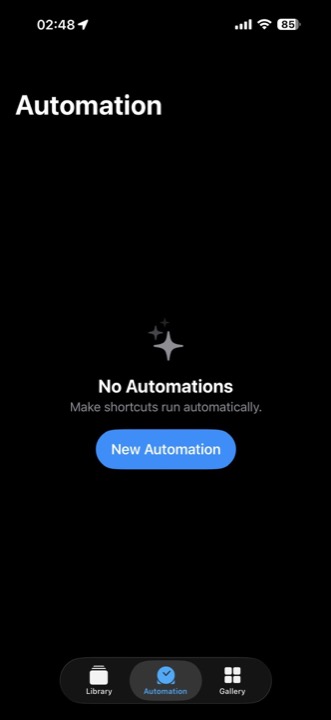
Step 1Open Shortcuts and start a new automationUse the same iPhone where SmartBudget is installed. Open the Shortcuts app, tap Automation at the bottom, then tap New Automation.
If you cannot find Shortcuts, swipe down on the iPhone Home Screen and type Shortcuts in the search field. This searches for the app on your iPhone. If Shortcuts does not appear, download Apple's free Shortcuts app from the App Store.
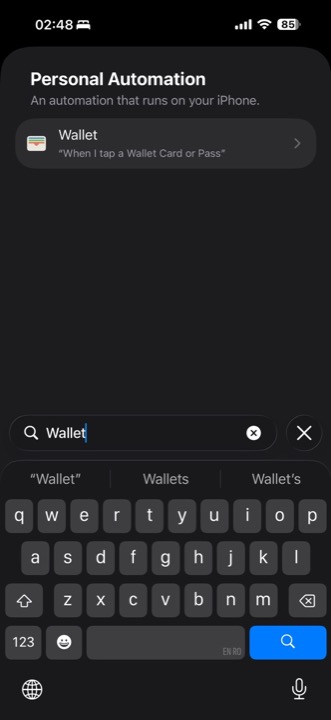
Step 2Choose Wallet as the triggerOn the Personal Automation screen, tap the Search field, type Wallet, then select Wallet.
Choose the Wallet option that says "When I tap a Wallet Card or Pass".
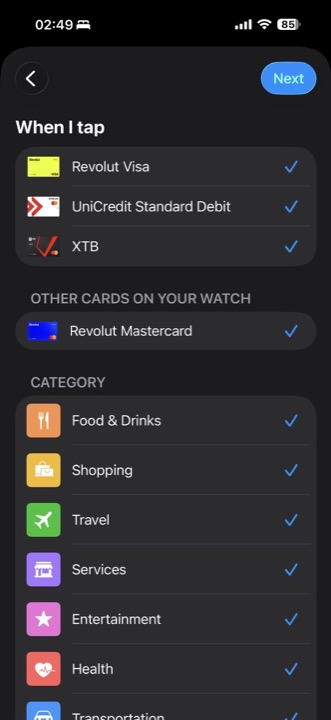
Step 3Select the cards that create SmartBudget expensesSelect the Apple Pay cards that should create an expense in SmartBudget each time you pay with them on this iPhone. Tap Next.
You can select one card or multiple cards. Only payments made with the selected cards on this device can trigger the automation.
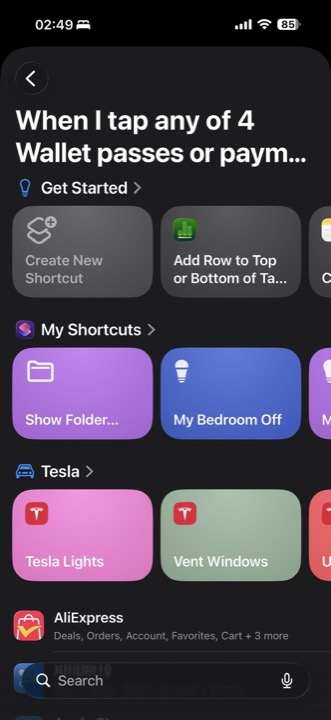
Step 4Create a new shortcut actionTap Create New Shortcut.
This lets you add the SmartBudget action that creates the expense.
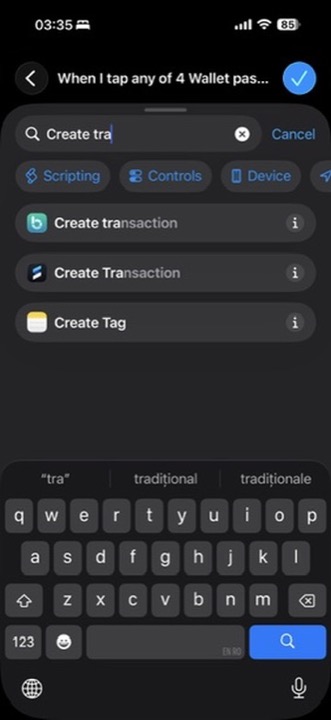
Step 5Select Create TransactionSearch for Create Transaction, then select Create Transaction with the SmartBudget icon.
If more than one Create Transaction action appears, choose the one with the SmartBudget app icon.
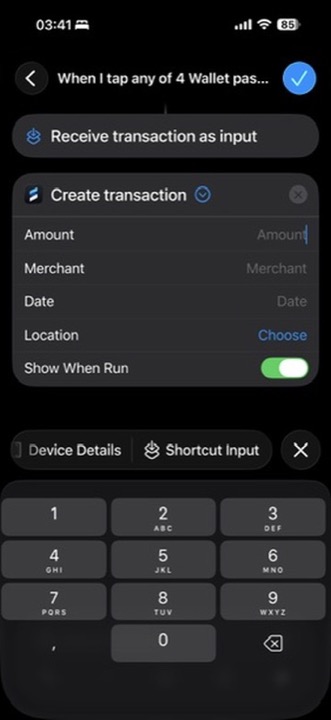
Step 6Set Amount to Shortcut InputTap the blue chevron next to Create Transaction to expand the fields. Tap Amount, then choose Shortcut Input from the variable suggestions.
Shortcut Input is usually the last option in the variable suggestions.
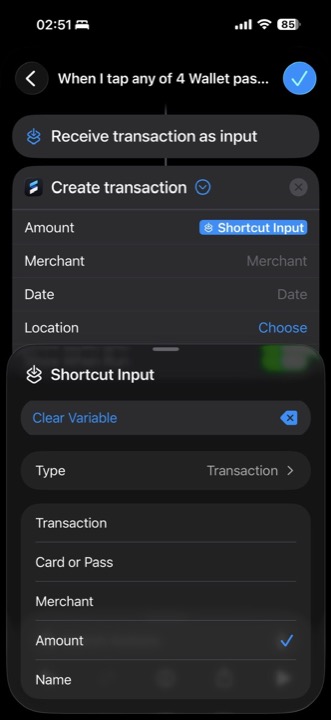
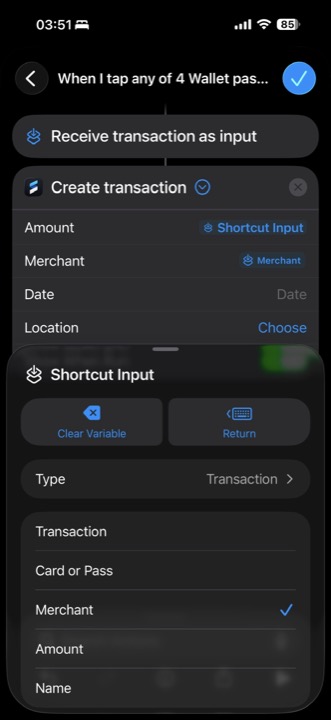
Step 7Choose Amount from Shortcut InputTap the Shortcut Input value you just added next to Amount. In the panel that appears, select Amount from the list.
After selecting Amount, the Amount field may still display Shortcut Input. That is OK.
Step 8Set Merchant to MerchantTap Merchant, choose Shortcut Input, then tap the new Shortcut Input value and select Merchant from the list.
The Merchant field should show Merchant after this. It is still OK if the Amount field shows Shortcut Input.
Step 9Set Date to Current DateTap the Date field, then select Current Date from the variable suggestions.
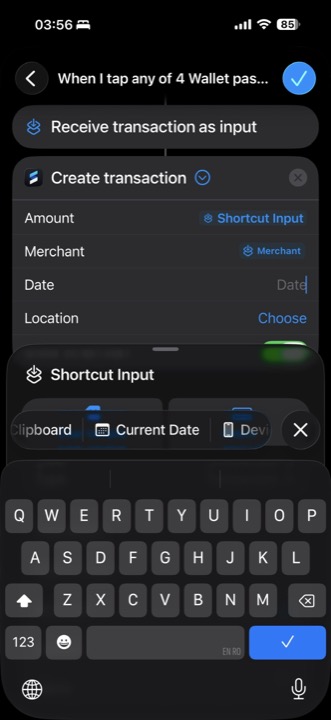
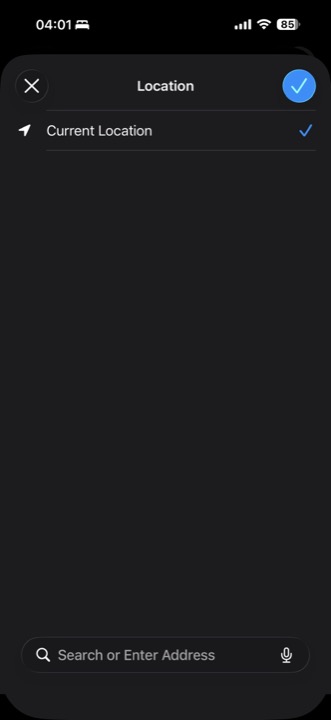
Step 10Set Location and save the shortcutTap the Location field and select Current Location, then press the top-right checkmark. Turn on Show When Run, then press the top-right checkmark again to save.
Show When Run lets you see when the automation is triggered after paying with your card.